What Is a 403 Error?

What Is a 403 Error?

What Is a 403 Error?
What Is a 403 Error?

Every response on the Web comes with an HTTP status code. Users don't see most of them on their browsers. The browser uses them to do its work. The most common one, 200, says that the request succeeded. Others indicate a redirection to another URL, a software error, or a problem delivering the requested content.

The last category — that the server can't or won't deliver what was requested — uses numbers starting with 4, and those often are visible on the browser. Everyone has run into code 404, "not found." It comes back when the user enters the wrong URL, or the page it used to serve is no longer available.

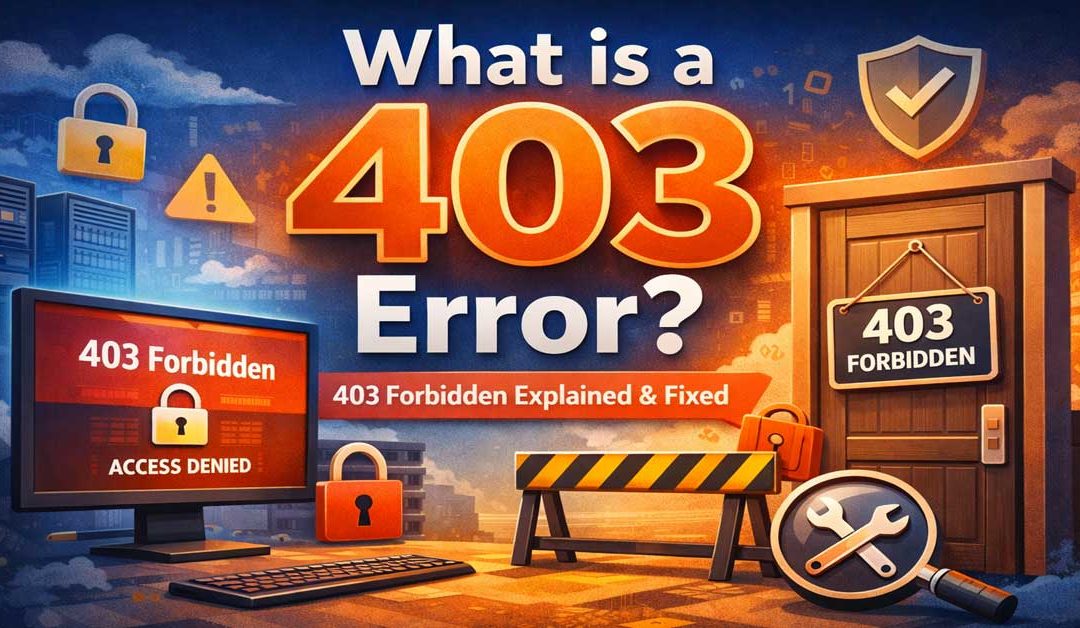
Code 403, meaning "forbidden," isn't as common, but most regular Web users have seen it. The World Wide Web Consortium's official description is "The server understood the request but is refusing to fulfil it." It generally means the content exists but isn't available to the user.

Sometimes, this code indicates a bug on the server side. If OrangeWebsite hosts your content, we'll help you to make sure your audience doesn't get it by mistake.

Causes of 403 responses

A request can get a 403 response for several reasons. Some are legitimate rejections of the request, but others may indicate errors in setting up the server. Legitimate refusals can be for these reasons:

  • The content is private, and the viewer isn't logged in as its owner.
  • The content is restricted to a set of authenticated users.
  • The IP address in the request is prohibited. This can happen if the client is listed as a malicious site, or if the content is geographically restricted.
  • The IP address is temporarily blocked, for reasons such as too many failed login attempts.
  • Security software has flagged the request as malicious. For instance, its data might look like an SQL injection attempt.

A 403 response can result from a mistake in setting up the server:

  • No default file manages the site's configuration. This will happen if the user enters a request like http://example.com/ and there is no file with the name index.html or another name the server configuration recognizes as a default. The site configuration may allow directory listing, in which case the user will see a list of files instead. This option is a bad idea for both user-friendliness and security. The directory should have a default file.
  • File permissions aren't set up correctly. This often happens when the owner of a file is different from the user the Web server runs as. For instance, if a file belongs to "admin" and is readable only by its owner, and the server runs as "Apache," it won't be able to read the file and will return a 403 error.
  • A bug or configuration error is making security software refuse legitimate requests.
  • The .htaccess file, which controls the requests the server accepts, contains errors. A defective .htaccess file might block all requests or allow ones that shouldn't be allowed.

Another possibility is that the user's employer or ISP is blocking the request. Some countries mandate blocking on a nationwide scale. The blocking node returns a 403 code without passing the request to the server.

What Is a 403 Error?

What to do

A legitimate 403 response is no problem, but if users are getting them when they shouldn't, fixing the issue is necessary. This checklist will let the administrator fix many problems:

  • Ensure the account the server runs under has all necessary file permissions. The simplest way is to have the content files belong to the same account. Alternatively, the files can belong to another user in the same group and be set as group-readable.
  • Review the .htaccess file to ensure it does what is intended and doesn't have syntax errors.
  • Check that any security configuration software (e.g., mod_security) has the correct rules and isn't excessively strict.
  • If only certain users are getting 403 responses, try to find out if the site is on a blacklist.

Related status codes

The 403 response has a different meaning from other codes in the 400 and 500 series. Websites don't always use the correct code, and sometimes it's unclear which one should be used. These are some that might appear:

  • 401 (unauthorized): The site asks the user to present credentials, such as a password, before making the content available. This is different from a request to log in to the site.
  • 404 (not found): A site may use this when it doesn't want unauthorized users to know it's a valid URL. Giving a 403 response tells the user that something resides there, and sometimes that's more information than they want to give.
  • 406 (not acceptable): The content is available, but the request insisted on giving it in a form (e.g., a certain encoding) that the server can't deliver.
  • 410 (gone): The content is no longer available. This is rare; most sites use 404 in this situation.
  • 451 (unavailable for legal reasons): This code is an IETF proposed standard. You may see it for legally blocked content as an alternative to 403. It could indicate regional blocking for copyright reasons or prohibition by a government. The number is a play on Ray Bradbury's novel about book burning, Fahrenheit 451.
  • 500 (internal server error): This usually indicates an uncaught error in the software running on the server.
  • 503 (service unavailable): A server may return this when it's down for maintenance or overloaded. The resource will be available at a later time.

We can help

If your site is hosted on OrangeWebsite, we're ready to help you fix mysterious 403 errors and other problems. Our service is second to none, with an average ticket response time of just fifteen minutes. Signing up for site hosting is simple and quick, and we don't believe in censorship. As long as your content complies with our terms of service and Iceland's laws, it won't be “forbidden.”

What Is a 403 Error?

Table of Contents

▼▼▼▼▼

  • Table of Contents
  • What a 403 Error Means
  • Why 403 Errors Happen
  • Who a 403 Error Affects
  • How a 403 Happens Behind the Scenes
  • 403 vs 401 vs 404
  • How to Fix a 403 Error
  • Fixes by Cause
  • Common Mistakes That Make 403s Worse
  • Prevention and Best Practices
  • FAQ
  • Summary and Next Steps

If you’ve landed on this page asking What is a 403 Error?, you’re usually dealing with one of two situations: either a website is deliberately blocking access, or something in the site’s configuration is accidentally slamming the door in your face. A 403 error (often shown as 403 Forbidden) means the server understood your request, but it refuses to complete it because you don’t have permission to access that resource.

That matters because a 403 isn’t a server crash and it isn’t always a “missing page.” It’s a refusal. To a visitor it feels like the site is broken, but to the server it’s more like “I know what you want, and I’m not letting you have it.”

This guide is written for two kinds of readers: normal visitors who just want access to a page, and site owners/admins who need to fix a 403 on WordPress, cPanel hosting, Apache/NGINX, or behind a CDN/WAF like Cloudflare. We’ll explain what’s actually happening, how to identify the real cause quickly, and how to fix it safely without turning your server into an open door for attackers.

TL;DR (Quick Answer)

A 403 Error (Forbidden) happens when a server refuses to allow access to a page or file, even though it exists. Most of the time it’s caused by permissions (files/folders), access rules (.htaccess, NGINX config), security tools (firewall/WAF), or authentication/role settings. The fastest fix is to determine where the block is happening (CDN/WAF vs web server vs application), then correct the rule or permission that’s denying access. Avoid risky “fixes” like chmod 777—they can create security holes.

What a 403 Error Means (Simple Definition)

A 403 error is an HTTP status code that means the server is refusing to authorize your request. The key word is refusing. The server isn’t saying “I can’t find it” and it isn’t saying “I’m down.” It’s saying you’re not allowed to access that specific resource using your current request.

A good way to think about it: the server is a bouncer. Your browser walks up to the door and asks for /members/prices.html. The bouncer understands, checks the rules, then decides you don’t meet the requirements. So you get a 403.

This can be totally correct behaviour (private admin area, blocked IP range, country restriction), or it can be a sign that permissions or security rules are misconfigured.

(Internal link: [what-is-a-503-error])
(Internal link: [what-is-a-404-error])

Why 403 Errors Happen (The Big Picture)

A 403 happens because something in the request path is enforcing access rules, and those rules deny you. That “something” could be the web server itself (Apache/NGINX), a hosting control layer, an application like WordPress, or a security layer in front of everything (CDN/WAF).

The tricky part is that multiple layers can return a 403 for different reasons. For example, Cloudflare can return a 403 because a firewall rule triggered. Apache can return a 403 because a directory is not allowed. WordPress can effectively “403” you (sometimes via plugins or custom code) because your user role doesn’t have permission. To fix it cleanly, you need to identify which layer is actually blocking.

Most “sudden” 403 errors come from a recent change: a plugin update, an .htaccess edit, a new firewall rule, a permissions change during migration, or a CDN setting that got tightened. The good news is that once you find the layer, the fix is usually straightforward.

Who a 403 Error Affects

A 403 can affect different people in different ways, and that difference is a clue.

If only one person (or one office/network) gets the 403, you’re likely dealing with IP reputation, rate limiting, geo rules, or a security tool that flagged a specific pattern. If everyone gets it, you’re looking at a permissions/config issue on the origin server or a rule that blocks all traffic to a path.

It also matters whether the 403 affects the whole website or just a section. A site-wide 403 is often a server config problem, a broken rules file, or a CDN/WAF misconfiguration. A 403 on a single folder like /wp-admin/ might be intentional. A 403 on /wp-content/uploads/ is almost always a permissions or security rule issue (and will break images site-wide).

How a 403 Happens Behind the Scenes

When you visit https://example.com/private-page/, your browser sends a request to the server. The server (or a security layer in front of it) checks a series of conditions: your IP, headers, cookies, authentication state, allowed methods (GET/POST), and server-side rules for that path.

If any rule says “deny,” the server returns 403. It may not even run your application code. For instance, an NGINX rule can deny access before WordPress ever loads. A CDN firewall can block the request before it reaches your host. That’s why some 403 fixes live in the control panel, some live in server config, and some live in your security layer.

One important detail: 403 errors are often protective. They can be a sign that your site is properly refusing suspicious traffic. The goal isn’t “remove all 403s forever.” The goal is “remove the wrong 403s and keep the right protections.”

403 vs 401 vs 404 (Don’t Confuse These)

A lot of troubleshooting goes off the rails because people treat these errors like they’re the same problem.

A 401 Unauthorized means authentication is missing or failed (you need to log in, or your login was rejected). A 403 Forbidden means the server understood who you are (or treated you as a public visitor) and still refuses access. A 404 Not Found means the server can’t find that resource (or is configured to pretend it can’t).

If a login is required and you’re not logged in, you’d normally expect 401 or a redirect to a login page—but depending on the site’s security rules, you might still get a 403. The fix is different: 401 tends to be credentials/auth; 403 tends to be permissions/rules/blocks.

How to Fix a 403 Error (Step-by-Step)

This is the fastest “no drama” process that works for most hosting setups. The goal is to identify the blocking layer, then fix the specific denial rule.

Confirm the scope
Test from two networks (home + mobile data) and two browsers (normal + incognito). If it only happens from one network, suspect IP blocks or WAF/rate limits. If it happens everywhere, suspect server rules or permissions.

Check whether the CDN/WAF is returning the 403
If you use a CDN (like Cloudflare), temporarily bypass it (pause, or test via direct origin IP/hosts file in a safe way) or check the security event logs. If the 403 is generated at the edge, you’ll fix it there.

Check the exact URL and whether it’s a directory
A request to a folder like /downloads/ without an index file can cause a 403 depending on server config. Make sure the URL is correct and points to an actual file/page.

Look at the web server error logs
For Apache/NGINX, logs often tell you exactly why access was denied (permissions, rule match, missing index, forbidden directive). This is the closest thing to a “truth source.”

Check file/folder permissions and ownership
After migrations or deployments, permissions are a classic cause. The web server must be able to read files and traverse directories.

Review access rules (.htaccess / NGINX config / security rules)
Undo or correct recent changes. If a 403 appeared right after you edited .htaccess, that’s almost certainly the culprit.

WordPress-specific checks
Security plugins, caching plugins, or membership/role plugins can trigger forbidden responses. If the issue started after a plugin/theme change, test by disabling the relevant plugin.

Retest and confirm resolution
After each change, retest the exact URL. Keep changes minimal so you know what fixed it.

(Internal link: [offshore-hosting-dmca-ignored])

Fixes by Cause (Most Common Scenarios)

File and Folder Permissions (Linux Hosting)

A very common reason for a 403 is that the server process cannot read a file or cannot “enter” a directory. This usually happens after a migration, a restore from backup, or a manual file upload where permissions/ownership changed. On shared hosting, it can happen if files were copied under the wrong user.

In practical terms: if example.com/wp-content/uploads/image.webp returns 403, your images might exist but the server isn’t allowed to serve them. If the homepage works but the uploads folder doesn’t, this is even more likely.

How to confirm:

Check permissions and ownership in your file manager (cPanel) or via SSH. If the folder can’t be traversed or files can’t be read by the web server user, you’ll see forbidden access.

Quick actions (safe defaults):

  • Set folders to 755 and files to 644 (typical safe baseline on many hosts).
  • Ensure your files are owned by the correct user/group for your hosting environment.
  • If you’re unsure, ask hosting support to correct ownership rather than guessing.

Important warning: Avoid chmod 777. It can “work,” but it gives full write access to everyone and can create serious security risk.

Apache .htaccess Rules Blocking Access

On Apache (and many LiteSpeed setups), .htaccess is often the source of sudden 403 issues. A single misconfigured directive can block an entire directory or even the full site. This commonly happens after adding security snippets, changing redirects, or enabling “hotlink protection” without fully understanding what it blocks.

Sometimes the .htaccess file itself can’t be read due to permission issues, which can also lead to denial behaviour. The result looks the same to a visitor: 403 Forbidden.

How to confirm:

Temporarily rename .htaccess to something like .htaccess_old and retest. If the 403 disappears, your rules are the problem. (Do this carefully—renaming can break permalinks temporarily on WordPress.)

Quick actions:

  • Roll back to a known-good .htaccess version (backup or version control).
  • Remove or narrow “deny” rules that are too broad.
  • Regenerate WordPress permalinks after restoring a clean .htaccess.

NGINX “Directory Index Forbidden” / Missing Index File

NGINX often returns 403 when someone requests a directory and there is no index file to serve, and directory listing is disabled (which is usually the correct security posture). This tends to show up as a 403 on URLs that end in a slash, like example.com/files/.

This can be accidental. For example, you may have moved index.php during a deployment or changed routing so the request points to a directory instead of a file.

How to confirm:

Check NGINX error logs for messages like “directory index of … is forbidden” or verify the directory contents to see whether an index file exists.

Quick actions:

  • Add or restore index.html / index.php as appropriate.
  • Ensure your NGINX index directive includes the correct index filenames.
  • Confirm your route/rewrite rules aren’t pointing to a directory by mistake.

CDN/WAF Blocks (Cloudflare and Similar)

If your site sits behind a CDN/WAF, it can return a 403 before your hosting server ever sees the request. This is common when firewall rules are set aggressively, when “bot protection” is too strict, or when a rule blocks certain countries, ASNs, user agents, or URL patterns.

It’s also common during legitimate traffic spikes: rate limiting or challenge rules can start denying requests that are actually real users. The result is a 403 that looks like a hosting issue but isn’t.

How to confirm:

Check your CDN/WAF security event logs around the time of the block. If the rule ID or firewall event matches the request, you’ve found the cause.

Quick actions:

  • Whitelist the affected URL or reduce the rule sensitivity for that path.
  • Allowlist known good IPs (office, monitoring tools) if they’re being blocked.
  • Review rate limiting thresholds so normal traffic doesn’t trip the rules.

Stop 403 Errors Before They Start

If you’re tired of unexplained downtime, recurring server errors, or hosting environments that fail under pressure, it’s time to upgrade.

Orange Website offers reliable, privacy-focused hosting built for websites that need to stay online — not apologize for being unavailable.

👉 Join Orange Website today and host your site on infrastructure designed for stability, performance, and peace of mind.

WordPress Security Plugins or Login/Role Restrictions

WordPress sites often generate “forbidden” behaviour due to security plugins, membership plugins, or custom role restrictions. The site may not literally return the 403 status in all cases, but many setups do—especially when a security plugin blocks access to wp-login.php or wp-admin/.

You might also see 403 issues on REST API endpoints, admin-ajax calls, or XML-RPC if security rules are tightened. That can break page builders, caching warmers, and even normal frontend features.

How to confirm:

Check the security plugin logs for blocked requests. If you can’t access wp-admin, disable the security plugin by renaming its folder in wp-content/plugins/ and retest.

Quick actions:

  • Disable the blocking plugin temporarily to confirm the cause.
  • Add exceptions for admin endpoints you legitimately use.
  • Review role permissions if a logged-in user is being blocked from a page they should access.

(Internal link: [how-to-improve-your-seo-in-2026]

IP Blocking, Geo Blocking, or Host-Level Firewall Rules

Sometimes the server is fine, but a visitor is blocked due to IP reputation, location rules, or firewall settings. This can happen at the hosting layer (fail2ban, mod_security rules, host firewall), at the application layer, or at a CDN.

This is especially likely if only some people report the issue, or if it happens to you while using a VPN.

How to confirm:
Test the same URL from mobile data, or ask a friend in another location to test. If only certain networks get blocked, it’s almost certainly an IP/geo/WAF rule. Hosting logs may show the block reason.

Quick actions:

  • Remove accidental IP blocks and review auto-ban settings.
  • Adjust geo rules if you unintentionally blocked your main audience.
  • Reduce sensitivity on rules that false-positive on normal behaviour.

Common Mistakes That Make 403 Worse

One of the biggest mistakes is trying to “fix” a 403 by throwing permissions wide open. People often reach for chmod 777 because it seems like the fastest lever. The problem is that it can turn a small access issue into a security incident. If you make files world-writable, you can make it easier for malicious scripts to be planted or modified.

Another common mistake is changing multiple things at once: editing .htaccess, tweaking CDN rules, disabling plugins, and changing server config all in one go. When the problem “disappears,” you won’t know which change fixed it—and you may accidentally leave a harmful setting in place. A good troubleshooting process is boring on purpose: change one thing, retest, repeat.

It’s also easy to misdiagnose the source layer. If Cloudflare is returning the 403, you can spend hours editing server permissions and nothing will change. Likewise, if Apache is denying access, you can loosen WordPress roles all day and it won’t matter. The fastest wins come from identifying where the 403 originates.

Finally, don’t ignore caching. Some CDNs and caching layers can cache an error response. That means you fix the underlying issue but still see the 403 until the cache expires or is purged. If you’re sure you fixed the cause, purge caches and retest from an uncached environment.

Prevention and Best Practices

The best way to prevent accidental 403 errors is to treat configuration like code. That means keeping backups of .htaccess and server configs, noting changes, and ideally using version control for anything that can take your site down. Many 403 incidents are simply “someone added a rule and forgot what it did.”

You should also separate security layers with intention: if your CDN/WAF is responsible for blocking bot traffic, don’t duplicate aggressive blocks in WordPress plugins unless you need to. Duplicated security rules often increase false positives and make troubleshooting harder because you don’t know which layer denied the request.

Good defaults—correct file permissions, correct ownership, and clean routing—solve a huge portion of “mystery” 403s before they begin. When you migrate a site, make permission checks part of the migration checklist, especially for content directories like uploads/.

If you want a few practical habits that prevent most accidental forbidden responses, these are the ones that pay off the most:

  • Keep a known-good .htaccess backup before making changes.
  • Document CDN/WAF rules and avoid “block broad patterns” unless necessary.
  • Validate file ownership after migrations/restores (especially WordPress uploads).
  • Avoid blocking /wp-admin/ entirely unless you have a safe method (VPN, allowlist, or 2FA).
  • Purge caches after fixes so you’re not chasing a cached 403.

(Internal link: [offshore-web-hosting])

Typical FAQ for an 403 Error

Why am I getting a 403 error on only one device or network?

That usually points to an IP-based block, rate limiting, geo rules, or a WAF decision. Try the same URL from mobile data or a different location. If it works elsewhere, check firewall/WAF logs and IP blocklists.

Can a 403 error be caused by Cloudflare?

Yes. A CDN/WAF can return a 403 before the request reaches your hosting server. If you use Cloudflare (or similar), check the security events/firewall logs to see which rule triggered.

What’s the safest default permission setup for a WordPress site?

On many Linux hosting environments, a common safe baseline is 755 for folders and 644 for files, but hosting environments vary. The critical part is correct ownership and ensuring the web server can read files without making them world-writable.

Why did my WordPress images suddenly start returning 403?

This often happens when wp-content/uploads/ permissions/ownership change after a migration, backup restore, or security plugin action. It can also happen if a WAF blocks hotlinked or suspicious requests to those paths.

What does “You don’t have permission to access / on this server” mean?

It’s a generic 403 message. The server is refusing access based on rules or permissions. The fix is to find whether the denial is from the CDN/WAF, server config (.htaccess/NGINX), or the application.

Can a 403 error harm SEO?

Yes, if important pages return 403 to search engines. Google can’t access or index content that’s forbidden. If a page should be public, fix the 403 quickly and confirm it’s accessible without login or special headers.

Should I fix a 403 by enabling directory listing?

Usually no. If a directory is returning 403 because it has no index file, enabling directory listing can expose files you didn’t mean to publish. A safer fix is to add an index file or route requests properly.

Why does the 403 keep showing even after I fixed it?

Caching. Your CDN or caching layer might have cached the forbidden response. Purge caches and retest from an incognito window or a different network.

Summary and Next Steps

So, what is a 403 error? It’s a “forbidden” response: the server understood the request but refused to allow it. That refusal can be intentional (private content, blocks against suspicious traffic) or accidental (bad permissions, broken .htaccess, missing index files, overzealous security rules, or CDN/WAF misfires).

The quickest path to a real fix is to identify the blocking layer first—CDN/WAF, web server, or application—then change one thing at a time while retesting. When you fix the right rule or permission, 403 errors usually disappear immediately. And when you prevent them, it’s mostly about good housekeeping: clean configs, safe permissions, documented security rules, and controlled changes.

Just Who Owns the Internet?

Just Who Owns the Internet?

Just Who Owns the Internet?

Some connect to it, some surf it, and others are addicted to it. We use it to keep up-to-date and to stay connected. It has been referred to as the web. the 'net, and the world-wide-web. It, of course, is the internet. But just what is “it”? What are its components, what is it most often used for and just who, after all, owns the internet?

You may be in for some surprises.

Components of the Internet

The internet is an increasingly large network of wires and wireless systems that serve to connect a variety of devices that communicate with each other through a set of common language protocols. Today, it is actually a network of networks that are all interconnected in a web-like fashion.

The internet can be best described as a network but to be functional the network needs a language and hardware to make it useful.

There are, of course, wired and wireless aspects to the internet. You may have cable television that connects you to the internet or cell towers that accomplish wireless cellphone connectivity. Overseas connections may be accomplished through fiber optic cables running along the ocean floor or through satellite or radio transmissions.

Hardware is generally divided into clients or servers. Clients include hardware that makes use of data found on the internet like a desktop or laptop computer, cell phone or printer. Servers are devices that store information and software that allows this information to be shared among client devices.

The language of the internet is so critical in its functionality that it is generally accepted that it wasn't until Transmission Control Protocol (TCP) and Internet Protocol (IP) was created as the protocol suite, (TCP/IP) in 1982, that the internet was “born”. The Internet Society offers a more in-depth look at this history of the internet for those interested in pursuing more details.

Major Uses of the Internet

Recent statistics show that just over 25% of all communications on the internet are conducted in English. Chinese is second at about 20% with 8% of users speaking Spanish. China, with over 730 million online users, has the most internet users followed by India, with over 460 million users. As far as the United States is concerned, the country has 289 million online users, accounting for an almost 90% penetration rate. Worldwide, it is estimated there are over 3.5 billion internet users. What are all these people using the internet for?

If the world's most visited websites are any indication, the internet is mostly used to gather and share information. Google is the most often visited site on the planet followed by YouTube and Facebook. It is interesting to note that about 51% of all internet traffic in 2017 was performed by some form of “bot” while about 49% was from human activity.

Like previous media, advertising has found its place at home on the internet. Spending in 2017 on internet marketing exceeded that of television for the first time.

Who Owns the Internet?

What makes this such an interesting question is the answer may depend on why the question is being asked.

If it is being asked to determine who has control of the internet, “control” is most often a result of government regulations. In this case, governments control the internet in their own countries, usually based on how “free” that country may be. According to the non-profit group Freedom House, the five most restrictive countries regarding freedom on the internet include:

  • North Korea
  • Iran
  • Ethiopia
  • Cuba
  • China

North Korea has more of an intranet than internet with only a few dozens North Korean approved websites available on their edition of the 'net. Orangewebsite.com recently published an article on The Most Internet Restrictive Countries on the Planet.

While individual countries can regulate internet access and use, and they can even jail citizens for internet posts, they don't “own” the internet in the true sense. The reality is, the internet exists for the good of those who participate in its functionality. You may “own” your own section of the internet with your personal electronic devices but likely pay for access to the world wide web. You may pay for access to one of many large telecommunications companies who has invested in the “backbone” of the internet. These companies include giants like AT&T, Comcast Xfinity, Time Warner, Charter Communications, Verizon, and others. These are names that are seemingly constantly in the news regarding mergers and acquisitions as they position to combine themselves with content companies to provide more attractive “packages” for consumers.

On the server side, millions of companies pay to lease server space so their websites are reliably available to consumers and potential customers who may be interested in what these companies are offering. This is one of the functions that Orangewebsite.com plays in our role on the internet.

What is Orangewebsite.com's Role on the Internet?

When a large or small company wants to make an impression on the internet with a website, that website must be reliable and quickly accessible. It must offer conveniences consumers are comfortable with like secure payment systems and security in general. It needs to offer mobile capabilities and have a technologically adept team to keep servers and equipment running at peak performance at all times. It should always make available the latest software and add on's both clients and consumers expect. At Orangewebsite.com, we are committed to all of these and more. We provide “green”, environmentally friendly hosting in Iceland, a country with abundant renewable energy resources and a government commitment to a free, non-intrusive role on the internet.

If you are interested in co-location and hosting services, we invite you to learn more about us and our role in offering a more green, free internet. We invite you to contact us at Orangewebsite.com. The more you know about the internet, hosting, and the importance of the environmentally friendly use of technology, we think the more likely it is you will choose Orangewebsite.com.

Who Owns The Internet?

The Answer might just suprise you

Table of Contents

▼▼▼▼▼

What Is Eco Web Hosting?

Why It's Important?

Why Use Eco Hosting?

Benefits Of Eco Hosting

Making The Change

The Value Of Eco Hosting

People talk about “the internet” like it’s one giant thing you can point to — like a company, a building, or a single network that somebody must own. But the internet isn’t one thing. It’s more like a massive, interconnected ecosystem made up of physical infrastructure, shared technical rules, private companies, public institutions, and billions of users all interacting at once.

So… who owns the internet?
In the simplest, most accurate sense: no single person, company, or government owns the internet. What is owned are the pieces that make the internet work — cables, routers, data centers, servers, domain names, IP address allocations, platforms, and access networks — plus the rules and governance systems that keep everything interoperable.

Let’s break that down in a way that actually makes sense.

"You cannot get through a single day without having an impact on the world around you. What you do makes a difference, and you have to decide what kind of difference you want to make".

- Jane Goodall

What the Internet really is

The internet is best understood as a network of networks.

Your phone, PC, console, or smart TV is a client (it requests information).

Websites, apps, and services live on servers (they store and deliver information).

Those clients and servers talk to each other using shared “languages” called protocols. The most famous being TCP/IP, which is basically the foundation that allows networks worldwide to communicate in a consistent way.

The important point: the internet works because everybody agrees to use common standards. Without shared rules, you don’t get “the internet” — you get isolated networks that can’t talk to each other.

Why Eco Friendly Web Hosting Matters More Than Ever

Data centers consume a staggering amount of electricity globally, much of it still generated from fossil fuels. Every website, email, backup, and database query contributes to that demand.

Eco friendly web hosting directly addresses this problem by changing how hosting infrastructure is powered and managed. Instead of relying solely on conventional power grids, eco hosting providers invest in renewable energy sources and energy-efficient systems that drastically lower environmental impact.

For website owners, choosing eco hosting is one of the simplest ways to reduce their digital carbon footprint — without changing their website, content, or workflow.

The internet has two sides:

The internet has two sides, the physical side and the rules side. When people ask “who owns the internet,” they’re usually talking about one of these:

1) The physical internet (the stuff you can touch)

This includes:

Fiber optic cables (including undersea cables connecting continents)

Cell towers and wireless backhaul

Routers, switches, and internet exchange points (IXPs) that move traffic around

Data centers and server infrastructure

Last-mile networks owned by ISPs (the connection to homes and businesses)

This physical layer is mostly owned by private companies, sometimes partially by governments, and often through partnerships and joint ventures.

2) The governance internet (the stuff that keeps it organized)

This includes:

Technical standards (how devices communicate)

Domain name management (how names like example.com connect to servers)

IP address allocation (how devices and networks get unique addresses)

Policy and regulation (laws, censorship rules, telecom regulation, net neutrality policies, etc.)

This layer is handled by a mix of nonprofits, standards bodies, registries, and governments — and no single group has total control.

This physical layer is mostly owned by private companies, sometimes partially by governments, and often through partnerships and joint ventures.

So who owns the internet?

Nobody owns “the internet” as a whole

But many entities own and influence parts of it.

A good way to think about it is like roads and traffic:

No one owns “transportation.”

But someone owns the roads, someone sets the driving rules, companies own the cars, and governments can restrict where you can go.

Same deal here.

Who controls the internet depends on what you mean by “control”

This is where the question gets spicy, because “control” can mean different things.

If you mean who controls access

That’s mostly ISPs and telecoms.

If you pay for home internet, mobile data, or business connectivity, you’re buying access through a provider that controls things like:

connection quality and routing choices

bandwidth limits and throttling policies

service availability in your region

compliance with local laws (including blocks and takedowns)

Big-name telecoms don’t “own” the internet, but they absolutely own major chunks of the internet backbone and “last-mile” access — which is a powerful type of control.

If you mean who controls the rules

That’s shared between:

Standards organizations (they define how the internet functions technically)

Domain and numbering governance (the systems that prevent chaos)

National governments (they regulate what’s allowed within borders)

No one has a master switch, but plenty of groups can influence how the internet behaves.

If you mean who controls what you see

That’s largely platforms and services.

For most people, “the internet” feels like:

Google

YouTube

Facebook / Instagram

TikTok

X

Reddit

major news sites

app ecosystems

Those companies don’t own the internet either — but they shape attention, discovery, and speech at massive scale through ranking systems, moderation policies, and ad platforms.

Governments: they can’t own the internet, but they can box it in

Governments generally don’t own the global internet, but they can exert strong control inside their borders through:

filtering and blocking websites

pressuring ISPs to restrict access

forcing platform compliance

surveillance and data retention laws

criminal penalties tied to online speech

That’s why “who owns the internet” sometimes turns into “who controls online freedom.”

Some countries operate something closer to a heavily controlled internet, and a few effectively run a national intranet model where outside access is limited or tightly monitored.

(OrangeWebsite has also covered this topic in its article on the most internet restrictive countries, which is worth linking internally.)

The quiet “owners”: the organizations that keep the internet from falling apart

A lot of the internet’s stability comes from boring-but-critical coordination. This is one of the reasons the internet has historically been resilient: it’s distributed, it’s cooperative, and it’s built to route around problems.

Domain names and DNS

When you type a website name, DNS translates that name into an IP address so your device can find the server. The overall DNS ecosystem is global and distributed — and while parts of it are managed by organizations and registries, it’s not something a single company “owns.”

IP addresses

IP addresses must be unique across the global internet. Distribution is coordinated through regional internet registries (RIRs). This isn’t ownership in the traditional sense — it’s more like a controlled allocation system so the whole thing stays organized.

Internet standards

Protocols like TCP/IP, HTTP, TLS, and DNS depend on widely adopted standards. These standards exist because large parts of the internet community agree to follow them — not because one corporation enforces them.

    The biggest misconception: “Big Tech owns the internet”

    Big Tech companies own a lot — but not the entire internet.

    They may own or control:

    huge cloud infrastructure (hosting for countless websites/apps)

    content platforms that dominate attention

    ad networks that fund most free content online

    major undersea cables and private backbone networks

    DNS services, security layers, and analytics tooling

    That’s enormous influence — but even then, the internet still has:

    independent networks

    competing providers

    open protocols

    decentralized routing

    thousands of data center operators

    countless privately owned websites and servers

    So the more accurate truth is:

    Big Tech doesn’t own the internet — but it can heavily shape how the internet feels to most users.

    Where web hosting fits into “who owns the internet”

    Most businesses don’t run physical servers in a closet anymore (and honestly… good). They lease server space from hosting providers who maintain:

    data centers

    network connectivity

    hardware performance

    security layers

    backups and uptime monitoring

    Hosting providers don’t own the internet either — but they provide the infrastructure that powers a huge part of it.

    OrangeWebsite’s role in that ecosystem

    If your goal is to “own your presence” online in a meaningful way, reliable hosting matters. You want your site to be:

    fast

    stable

    secure

    accessible across regions

    supported by a provider that takes infrastructure seriously

    At OrangeWebsite, that mission is paired with a focus on Iceland-based hosting and renewable-energy-driven operations — which matters more than ever as the internet’s physical footprint grows alongside global demand for always-on services.

    (Internal link opportunity: environmentally friendly use of technology / green energy hosting pages.)

    FAQ: Who owns the internet? (Quick answers)

    Does ICANN own the internet?
    No. ICANN coordinates parts of the domain name system and related identifiers. That’s governance and coordination — not ownership of the internet itself.

    Do governments own the internet?
    Not globally. Governments can regulate and restrict access inside their borders, but they don’t own the internet as a whole.

    Do ISPs own the internet?
    They don’t own the entire internet, but they often own key infrastructure (especially last-mile access) and can strongly influence connectivity.

    Does anyone own the internet backbone?
    Pieces of it are owned by various telecoms, consortia, and infrastructure companies. There isn’t one backbone owner — it’s a patchwork of interconnections.

    So… who owns the internet?
    No one owns the entire thing. The internet is shared infrastructure made up of privately owned parts, coordinated standards, and country-level regulation.

    Final thoughts: the internet is shared — and that’s the point

    The internet was never designed to be “owned” like a single product. It was designed to connect networks, route around failure, and keep working even when parts go offline. That distributed nature is a big part of why it became so powerful.

    So if you’re asking “who owns the internet” because you’re thinking about freedom, privacy, access, censorship, or where your website lives — you’re asking the right question.

    The real answer is less about ownership and more about influence:
    who owns the wires, who sets the rules, who controls the platforms, and who hosts the services people rely on every day.

    How to Improve Your SEO

    How to Improve Your SEO

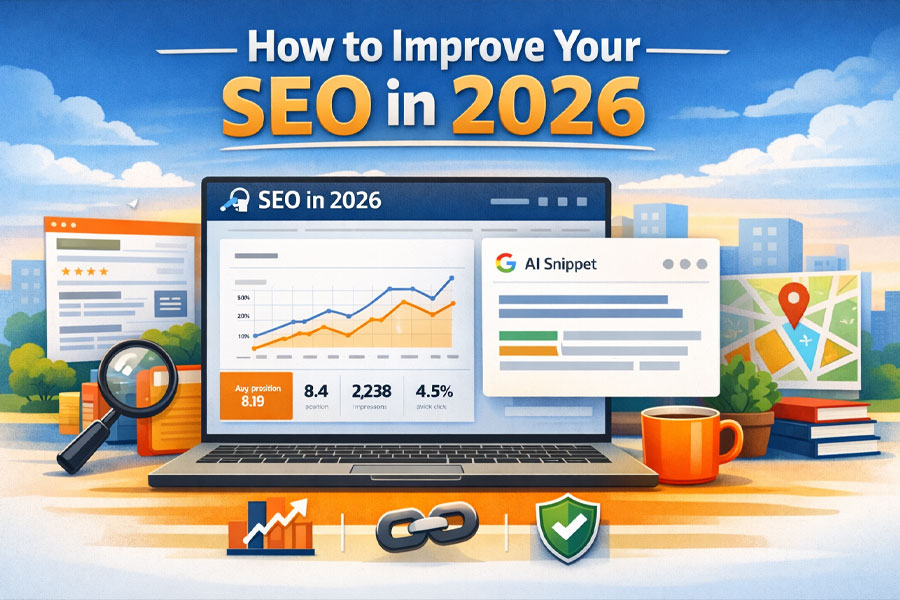
    How to improve your seo in 2026

    "SEO in 2026 is less about “gaming Google” and more about becoming the page that deserves to be shown first."

    Search engines are better at detecting fluff, users are quicker to bounce, and AI-driven summaries mean you’re competing not only for rankings, but for being the source that gets referenced and trusted. If you want to improve your SEO now, the goal is simple: make your site easy to crawl, make your pages the best answer, and make your brand feel credible enough that people (and other sites) want to cite you.

    This guide is written as a practical walkthrough. You’ll get a clear plan, a few fast wins you can apply today, and a 30-day roadmap you can repeat every month to keep compounding results.

    Quick wins to start: tighten titles for higher CTR, improve internal linking to your best pages, refresh content that already has impressions.
    Technical fixes to make: fix indexability, clean up broken links, reduce speed/UX friction on mobile.
    Long-term growth strategy: build topic clusters, publish “reference-worthy” content, and earn links naturally.

    What Is a 503 Error?

    At a glance

    If you only have one hour this week, focus on what’s already close to winning. In most cases, that means improving pages that already show up in Search Console and are hovering just outside the top results.

    • Best quick win: improve CTR on pages that already get impressions
    • Best long-term win: topic clusters + internal linking
    • Most common mistake: publishing random posts that don’t match search intent
    • Tools you’ll use: Google Search Console, analytics, and a speed test tool
    What Is A 503 Error

    Step 1: Start with a baseline (15 minutes)

    Before you change anything, you need a quick snapshot of where you are right now. Otherwise, it’s too easy to “do SEO” for weeks and not know what actually helped.

    Open Google Search Console and look at the last 28 days. Find pages that get impressions but have a low click-through rate, and pages that sit in positions 8–20. Those are your easiest wins because Google is already testing you for those queries. You’re not starting from zero — you just need to make your result more clickable and your content more satisfying.

    Then open your analytics and look at your top organic landing pages. If a page gets traffic but people leave quickly, it’s usually not a ranking problem — it’s a content experience problem. That tells you exactly where to focus.

    Do this now:

    • Pick 5 pages that already get impressions in Search Console

    • Note their top queries, CTR, and average position

    • Mark any pages with good impressions but low CTR (title/meta wins)

    • Mark any pages stuck around positions 8–20 (content/internal link wins)

    Common mistake: people start by writing new content, but the fastest improvements usually come from upgrading what’s already getting visibility.

    Step 2: Fix technical SEO issues (30–60 minutes)

    Technical SEO isn’t about doing something fancy. It’s about removing the invisible problems that stop your best content from competing. If Google can’t crawl your pages properly, or if your site is slow and frustrating on mobile, you’re fighting with one hand tied behind your back.

    Start with indexability. A surprising number of pages don’t rank simply because they’re blocked, set to noindex, or canonicalized incorrectly. After that, clean up basic site hygiene: broken links, messy redirects, duplicate pages, and inconsistent URL structures.

    Then focus on speed and usability. Your site doesn’t need to be perfect, but it does need to feel fast and stable. If a page takes too long to load or jumps around as it loads, users leave — and over time, that damages performance.

    Quick fixes vs deep fixes

    Quick fixes (today):

    • Check for accidental noindex tags on important pages
    • Make sure your important pages aren’t blocked in robots.txt
    • Fix obvious broken internal links
    • Remove redirect chains where possible

    Deep fixes (this month):

    • Improve site speed and stability (especially on mobile)
    • Reduce heavy scripts/plugins that slow pages down
    • Fix duplicate content and canonical issues
    • Audit crawl paths so important pages aren’t buried

    Mini example: if your homepage canonical accidentally points to a shop category page (or vice versa), Google can treat the “wrong” page as the main one. That’s the kind of tiny technical issue that creates massive ranking weirdness.

    Step 3: Upgrade on-page SEO by matching intent.

    The keyword “how to improve your seo” has simple intent: people want a plan they can follow. That means your page needs to behave like a guide, not a glossary.

    In 2026, a page wins when it makes the reader feel understood fast. The first few seconds matter. Your intro should confirm what the reader wants, explain what they’ll achieve, and show the structure of the solution.

    From there, headings should act like signposts. Each section should answer a real question and move the reader forward. If you’re repeating yourself, you’re losing them.

    Do this now:

    • Rewrite the intro to be clear, helpful, and specific
    • Add headings that reflect the steps a real person would take
    • Add a short “at a glance” summary near the top
    • Improve readability: short paragraphs, clear transitions, visual breaks

    Common mistake: writing “SEO tips” that sound correct but don’t actually help someone do anything.

    What Causes A 503 Error

    Step 4: Improve internal linking (30 minutes)

    Internal linking is one of the easiest ranking levers because it’s completely in your control. It helps search engines understand which pages matter most, and it helps users naturally find the next step in their journey.

    The key is to link like a helpful human, not like a robot. Link where the reader would genuinely benefit from going deeper. Use anchor text that makes sense. Don’t hide your best pages.

    If you have pages that matter to your business — service pages, category pages, key guides — those pages should receive internal links from related posts. If they don’t, they’re weaker than they need to be.

    Do this now:

    • Add 5–10 internal links to each priority page from relevant articles
    • Add links from your priority pages out to supporting pages
    • Make sure no important page is an “orphan” with no internal links pointing to it

    Mini example (good anchor): “technical SEO checklist”
    Mini example (bad anchor): “click here”

    How To Prevent A 503 Error

    Step 5: Refresh content that’s already ranking (60–120 minutes)

    If your site is older than a few months, chances are your best SEO wins are sitting in your existing content. Pages that already have impressions are already in the game — they just need to become the better answer.

    A good refresh isn’t “change the date to 2026.” It’s adding what’s missing, removing fluff, improving clarity, and making the page more useful than competitors. Often, that means adding practical sections like examples, templates, checklists, and better internal links.

    When you refresh content, you’re also sending a strong signal that your site is maintained and current. That matters more in competitive topics where outdated advice is everywhere.

    Do this now:

    • Choose 3 pages with impressions and improve them aggressively
    • Add missing sections that match what users actually need
    • Improve titles/meta to increase CTR
    • Add internal links to and from relevant pages

    Common mistake: rewriting everything. Most pages don’t need a full rewrite — they need smarter structure and missing value.

    Stop 503 Errors Before They Start

    If you’re tired of unexplained downtime, recurring server errors, or hosting environments that fail under pressure, it’s time to upgrade.

    Orange Website offers reliable, privacy-focused hosting built for websites that need to stay online — not apologize for being unavailable.

    👉 Join Orange Website today and host your site on infrastructure designed for stability, performance, and peace of mind.

    Step 6: Build authority and earn links (ongoing)

    If you want consistent growth, you need authority. Authority isn’t just backlinks — it’s being the kind of site people trust enough to reference.

    In 2026, the easiest way to earn links is to create “reference-worthy” content. These are pages people cite because it saves them time or makes their own content better. Think templates, clear comparisons, original visuals, tools, and definitive guides that are updated.

    Outreach can work too, but it works best when you’re genuinely helping another site improve their page. If your content is the best resource for a specific subtopic, you’re offering value, not begging.

    Do this now:

    Create one “linkable asset” page (template, definitive guide, comparison)

    Add original visuals that other writers would want to cite

    Update it regularly so it stays relevant

    Step 7: Track the right SEO metrics (15 minutes weekly)

    SEO improves when you measure the right things consistently. Rankings are useful, but they’re not the full story. You want to track impressions, clicks, CTR, and average position in Search Console for your priority pages and queries.

    You also want to watch engagement: whether visitors stay, scroll, and click deeper into your site. If a page ranks but doesn’t satisfy, it’s unstable. If a page satisfies and keeps people moving, it usually grows.

    A simple weekly habit is enough: check your priority pages, note what moved, and keep upgrading the pages with the most potential.

    30-Day SEO action plan

    Misconfigured Server Software

    Incorrect configurations in:

    • Apache or Nginx
    • PHP-FPM
    • Load balancers
    • Firewall rules

    can prevent the server from properly responding to requests, triggering a 503 error.

    Exhausted Server Resources

    If your hosting account hits limits on:

    • CPU usage
    • RAM
    • Concurrent processes

    the server may stop accepting new connections altogether.

    External Service Failures

    Many websites rely on third-party services such as:

    • APIs
    • Payment gateways
    • CDN providers

    If one of these services fails and your website depends on it, the server may return a 503 error instead of loading broken content.

    Week 1: Baseline + quick wins

    Pick 5 pages with impressions, improve titles/meta for CTR, fix obvious on-page clarity issues, and add internal links.

    Week 2: Technical SEO + site hygiene

    Check indexability, fix broken links, clean up redirects, ensure sitemap is clean, and address the most obvious speed pain points.

    Week 3: Refresh key content

    Upgrade the content on your priority pages. Add missing sections, examples, better structure, and visuals.

    Week 4: Expand with supporting content

    Publish 2–4 supporting articles that strengthen your topic cluster and link them properly. Track performance and repeat.

    Frequently asked questions

    Frequently asked questions
    How long does SEO take in 2026?

    Most sites see early movement within weeks if they focus on pages that already have impressions. Bigger shifts usually take a few months because search engines need time to reassess your site and users need time to engage with the improved content.

    Should I update old content or write new content?

    If you already have pages with impressions, update those first. Refreshing existing content often wins faster than publishing from scratch because the page already has history and visibility.

    Are backlinks still important?

    Yes, but they’re not the only lever. Internal linking, content quality, and user satisfaction matter more than ever. Links help most when they point to genuinely strong pages.

    Does AI content hurt SEO?

    AI content isn’t automatically bad, but generic content is. If your page feels interchangeable, it’s weak. Add real experience, clear structure, and unique value so it’s not just a rewrite of what already exists.

    Final thoughts

    If you want to improve your SEO in 2026, the winning strategy is consistent upgrades, not one-time “optimizations.” Start with pages that already have visibility, fix technical friction, match intent with better structure, strengthen internal links, and publish content that’s actually worth referencing. Do that for 30 days and you’ll stop relying on luck — SEO becomes a system.

    Offshore Web Hosting

    Offshore Web Hosting

    Offshore Hosting DMCA Ignored

    What It Really Means and Why Website Owners Choose It

    Offshore hosting has moved from a niche solution to a practical infrastructure choice for many website owners. As copyright enforcement becomes faster, more automated, and increasingly abused, traditional hosting environments are no longer as stable as they once were. This shift has brought renewed attention to offshore hosting DMCA ignored, a term that is often misunderstood but highly relevant in today’s online landscape.

    At its core, offshore hosting is not about avoiding responsibility or operating outside the law. It is about choosing which legal framework governs your website, how complaints are handled, and how much control you retain when disputes arise.

    Understanding Offshore Hosting in Practice

    Offshore hosting simply means that your website is hosted in a country other than your own, under that country’s laws and regulations. This immediately changes how legal requests, copyright complaints, and data access demands are handled.

    Many offshore hosting providers operate in jurisdictions that:

    Have stronger privacy protections

    Do not automatically enforce foreign copyright laws

    Require proper legal process before acting on complaints

    This jurisdictional separation is the foundation of offshore hosting’s appeal. It introduces distance — legally and procedurally — between your website and aggressive enforcement mechanisms common in countries like the United States.

    What “DMCA Ignored” Actually Refers To

    The phrase DMCA ignored is shorthand, not a literal promise. The DMCA (Digital Millennium Copyright Act) is a United States law. Hosting providers outside the US are not legally required to comply with DMCA takedown notices unless local law obliges them to do so.

    In practice, this means offshore DMCA-ignored hosting providers typically:

    Do not act on automated or informal DMCA emails

    Require valid legal documentation under local law

    Follow court orders issued in their own jurisdiction

    Copyright complaints are not dismissed outright — they are handled through proper legal channels instead of instant takedowns. This distinction is critical.

    Why Offshore Hosting Exists at All

    Modern copyright enforcement is largely automated. While this increases speed, it also increases error rates and abuse. Website owners increasingly face situations where content is removed without context, review, or verification.

    Offshore hosting exists because many site operators need protection from:

    False or malicious DMCA claims

    Competitor-driven takedown abuse

    Automated copyright bots

    Blanket suspensions without investigation

    Offshore hosting slows the process down just enough for facts to matter.

    Key Benefits of Offshore Hosting DMCA Ignored

    Beyond copyright handling, offshore hosting offers a number of practical advantages that appeal to businesses, publishers, and platform owners alike.

    Greater Anonymity and Privacy

    One of the most cited benefits of offshore hosting is increased privacy. Many offshore jurisdictions enforce strict data protection laws and limit how easily personal or corporate information can be accessed.

    This can mean:

    Less exposure of ownership details

    Reduced data sharing with foreign authorities

    Stronger protections against third-party requests

    For privacy-conscious website owners, this alone can be a deciding factor.

    Protection Against Arbitrary Takedowns

    Traditional hosting providers often act first and ask questions later. Offshore DMCA-ignored hosting shifts that balance.

    Instead of instant content removal, providers typically:

    Review complaints manually

    Require proper legal standing

    Allow time for clarification or response

    This protects lawful content from being taken offline due to bad faith or automated claims.

    More Freedom Over Content and Expression

    Offshore hosting does not mean “anything goes,” but it does provide greater tolerance for content that is controversial, sensitive, or frequently targeted — even when it is legal.

    This is particularly valuable for:

    User-generated content platforms

    Media archives and forums

    Journalistic or investigative projects

    Websites operating in legally complex niches

    Freedom here is not lawlessness — it is proportional enforcement.

    Jurisdictional Independence

    By hosting offshore, your website is governed primarily by the laws of the hosting country, not by foreign statutes applied indirectly through hosting providers.

    This jurisdictional independence:

    Reduces exposure to foreign legal pressure

    Prevents automatic enforcement of external laws

    Ensures disputes are handled locally

    In an increasingly global internet, this separation matters more than ever.

    Increased Stability for Long-Term Projects

    For many site owners, offshore hosting is ultimately about reliability. Repeated takedowns, suspensions, or threats can cripple long-term projects even when no laws are broken.

    Offshore hosting provides:

    More predictable enforcement

    Fewer sudden service interruptions

    Better continuity for growing platforms

    Stability is often the most overlooked benefit — until it’s gone.

    What Offshore Hosting Does Not Protect

    It’s important to be clear about limitations. Legitimate offshore hosting providers do not protect criminal activity.

    Content that is universally illegal — such as fraud, malware distribution, or child exploitation material — is not tolerated. Court orders issued in the host country still apply and are enforced.

    Offshore hosting protects against jurisdictional abuse, not legitimate law enforcement.

    Offshore Hosting vs Traditional Hosting

    Traditional hosting environments prioritize compliance speed and risk avoidance. Offshore hosting prioritizes legal process and jurisdictional accuracy.

    That difference affects:

    How abuse complaints are handled

    How quickly content is removed

    How much control website owners retain

    Neither model is inherently “better” — they serve different needs.

    Is Offshore Hosting DMCA Ignored Right for You?

    Offshore hosting is not necessary for every website. For many small or low-risk projects, traditional hosting works perfectly well.

    However, offshore hosting becomes worth considering if:

    You have experienced false or repeated DMCA claims

    Your site relies heavily on user-generated content

    Content removals could seriously harm your business

    Privacy and jurisdiction matter to your operation

    In those cases, offshore hosting is less about avoidance and more about resilience.

    Final Thoughts

    Offshore hosting DMCA ignored is often framed as controversial, but in reality, it is a practical response to an increasingly automated and imperfect enforcement landscape.

    By choosing a hosting jurisdiction that values due process, privacy, and legal clarity, website owners gain greater control over their infrastructure and fewer surprises when disputes arise.

    For many modern websites, offshore hosting is not an extreme choice — it is a measured one.

    Benefits of Offshore Web Hosting

    Every website must be hosted. And there are a myriad of ways to do this. There is cloud hosting services and virtual private servers and dedicated hosting services and on and on. The choices for how an individual or organization wants their website hosted are nearly endless. And it is because of all of these options that many get lost in the differences. To begin to get a comprehensive understanding of all the options, it is good to start with just one: Offshore web hosting. This type of hosting allows individuals and organizations to host their site in a different country than they or their business are in. There are several reasons that this type of hosting can be advantageous:

    1. Cost

    Offshore web hosting can save companies money for various reasons. One of the big ones is that some countries have more motivating taxation policies than others. While this is not always the case, depending on what country the company is in and what country they want to host in, often times there are several offshore web hosts that can provide some sort of financial break when it comes to taxes.

    Additionally, many times offshore web hosting costs less. This is especially true for companies that are in the United States. Many European web hosts charge less for space in their server than their American counterparts. One of the reasons that offshore web hosting in places like Iceland can cost less is because they will not charge extra for any desired customization. In other words, companies will have a wider range of hardware selections with offshore hosting providers and, while they do provide the equivalent basic hosting packages that companies will find in their own countries, they are often happy to customize a hardware configuration that best suits a business’ needs. In the end, this means that companies get a lower price yet better quality.

    2. Anonymity

    Not every organization or individual feels that they need this, but in a time where invasive surveillance is more prevalent than ever, a little anonymity can not be a bad thing. And this is what offshore web hosting provides. Data is both more confidential and generally safer. Offshore web hosting is known to help prevent identity theft, as well as provide a layer of identity protection. Not only is this important for every single individual and organization, in an effort to protect against financial damage, but for those who would like to share information with the world that could upset a government, a company, or a powerful individual, this type of protection is a necessity.

    3. Freedom

    Not only does increased anonymity through offshore web hosting allow individuals and organizations to feel more free to share what they need and want to share, but there is generally more tangible freedom with offshore web hosting. Local web hosting providers can block a website if the content is not seen as acceptable by the government—there is also the potential that power or money could come into play with blocking a website. This can all be avoided by simply opting for offshore web hosting, where the company’s or individual’s home country has no say in the content that is hosted on foreign soil.

    4. Reliability

    Another consideration that should go into choosing a web hosting provider is where the server is located. It may be best for organizations to stay away from deals with web hosting providers that are stationed in areas with high rates of natural disasters. Floods, tornadoes, earthquakes and other similar forces of nature have the potential to bring servers down and a total loss of data can occur. And when it comes to organizations that are located in these areas themselves, they may want to consider going with an offshore web hosting provider in a safe area who could be a reliable backup in case important material is lost.

    6. Load Time And Customer Preferences

    Another important consideration is what your customers or website visitors would prefer. It is essential for companies to consider what location they are trying to reach. If they are located in the United States but have a large customer base in Europe—or vice versa—they may want to consider relying on an offshore web hosting provider somewhere in between, such as Iceland. This will allow the company to seem closer to where they are trying to sell to. Not only will the load time be faster, but people tend to prefer making purchases closer to where they are getting their items shipped—there is a sense that the shipping process will be safer, faster and more secure.

    And back to website load time, this is important. The most obvious reason for its importance is that customers get annoyed when they have to wait too long for a website to load what they are looking for. If it takes too long, they will just move on to another site. But there is also the weight that a website’s load time has on Google’s algorithm. The search engine’s algorithm is beginning to have a better and better understanding of how to create the most relevant and useful results and because it knows that users care about how well a website functions, load time effects Google rankings. The faster your website loads, the higher it will be ranked on people’s queries and searches. Therefore, being a little bit closer to your target market can only help this ranking.

    For more information about how offshore web hosting works, please contact us.

    What is a 503 Error?

    What is a 503 Error?

    What Is A 503 Error?

    If you’ve ever tried to visit a website and been met with the message “503 Service Unavailable”, you’re not alone. A 503 error is one of the most common — and most frustrating — server errors on the internet. For website owners, it can mean lost visitors, lost revenue, and damaged trust. For users, it’s simply a dead end.

    In this guide, we’ll explain what a 503 error is, why it happens, how to fix it, and — most importantly — how to prevent it from happening again. This article is written by Orange Website, with a focus on real-world hosting environments and practical solutions.

    What Is a 503 Error?

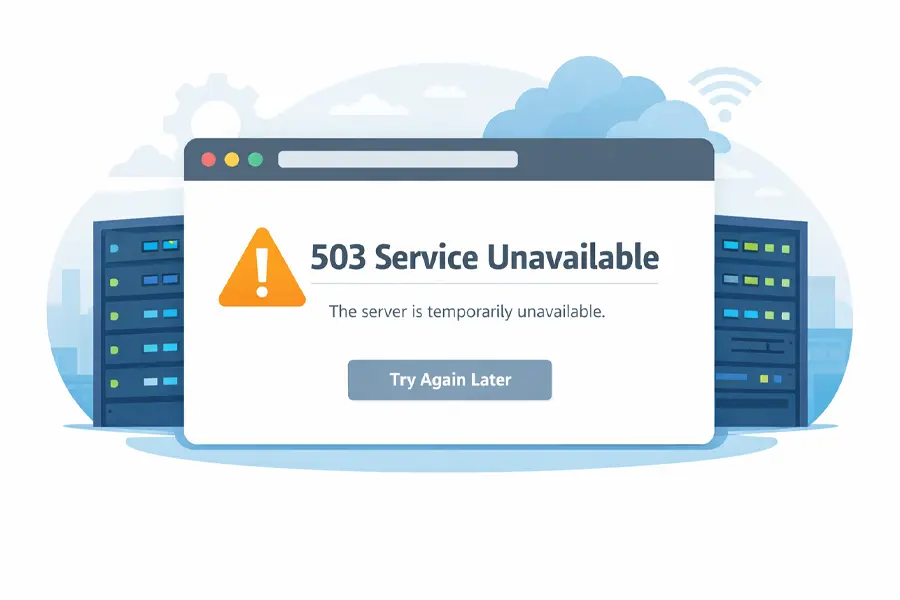
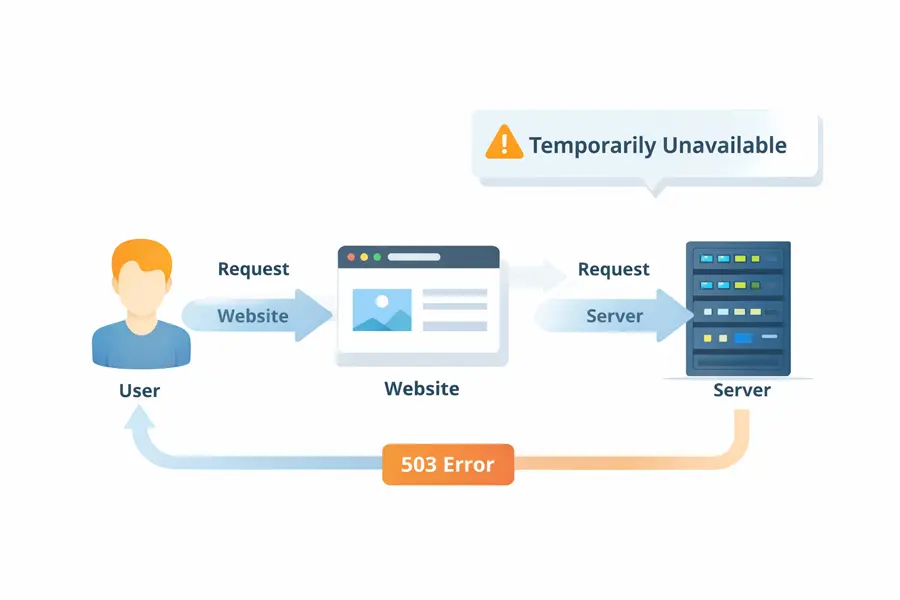
    A 503 error is an HTTP status code that means the server is temporarily unable to handle a request.

    In plain English:
    The website exists, the server is reachable, but it’s currently too busy, misconfigured, or unavailable to respond.

    Unlike a 404 error (page not found) or a 500 error (internal server error), a 503 error is usually temporary. That’s good news — but only if it’s resolved quickly.

    Common variations you might see include:

    • 503 Service Unavailable
    • HTTP Error 503
    • The server is temporarily unable to service your request
    • Service Unavailable – DNS Failure (in some setups)
    What Is A 503 Error

    Most Common Causes of a 503 Error

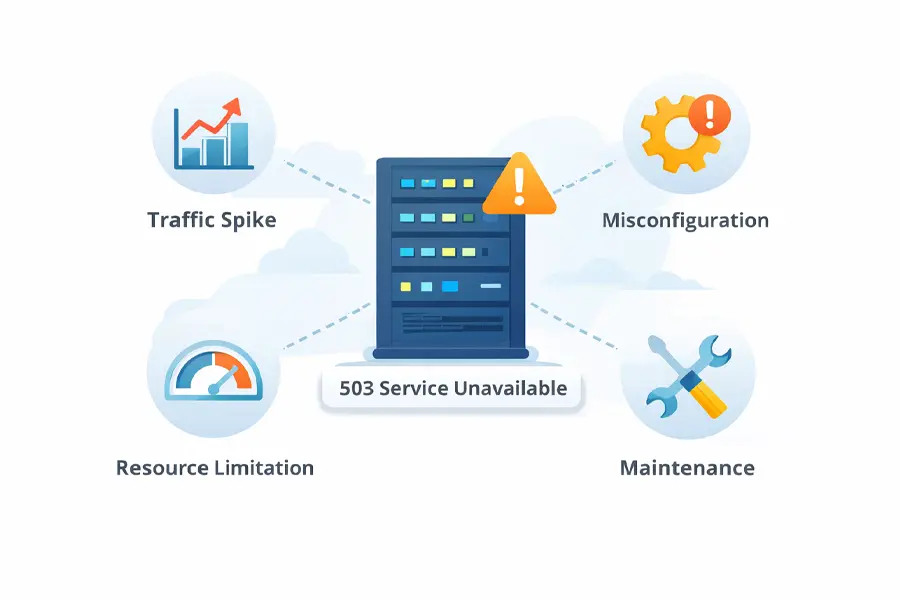
    A 503 error doesn’t happen randomly. It’s almost always caused by one of the following issues.

    Server Overload

    This is the most common cause. If your website suddenly receives more traffic than your server can handle — whether from a viral post, a marketing campaign, or even a malicious attack — the server may start rejecting requests.

    Shared hosting environments are especially vulnerable to this.

    Maintenance or Updates

    Servers taken offline for updates, software upgrades, or maintenance tasks may intentionally return a 503 error to signal temporary downtime. This is normal — but it should be controlled and brief.

    Understand What A 503 Error Is

    Misconfigured Server Software

    Incorrect configurations in:

    • Apache or Nginx
    • PHP-FPM
    • Load balancers
    • Firewall rules

    can prevent the server from properly responding to requests, triggering a 503 error.

    Exhausted Server Resources

    If your hosting account hits limits on:

    • CPU usage
    • RAM
    • Concurrent processes

    the server may stop accepting new connections altogether.

    External Service Failures

    Many websites rely on third-party services such as:

    • APIs
    • Payment gateways
    • CDN providers

    If one of these services fails and your website depends on it, the server may return a 503 error instead of loading broken content.

    How to Fix a 503 Error

    The fix depends on what’s causing the error — but here are the most effective steps.

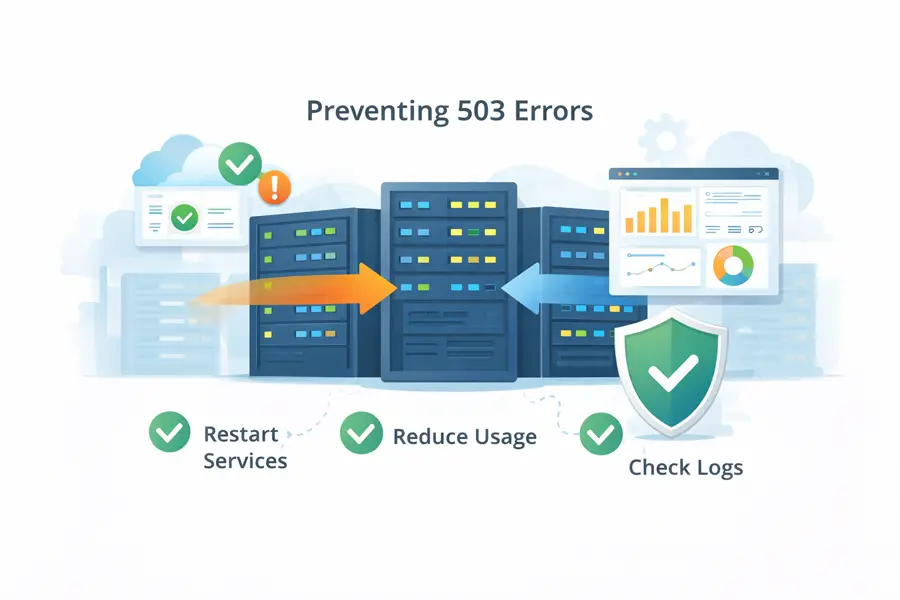
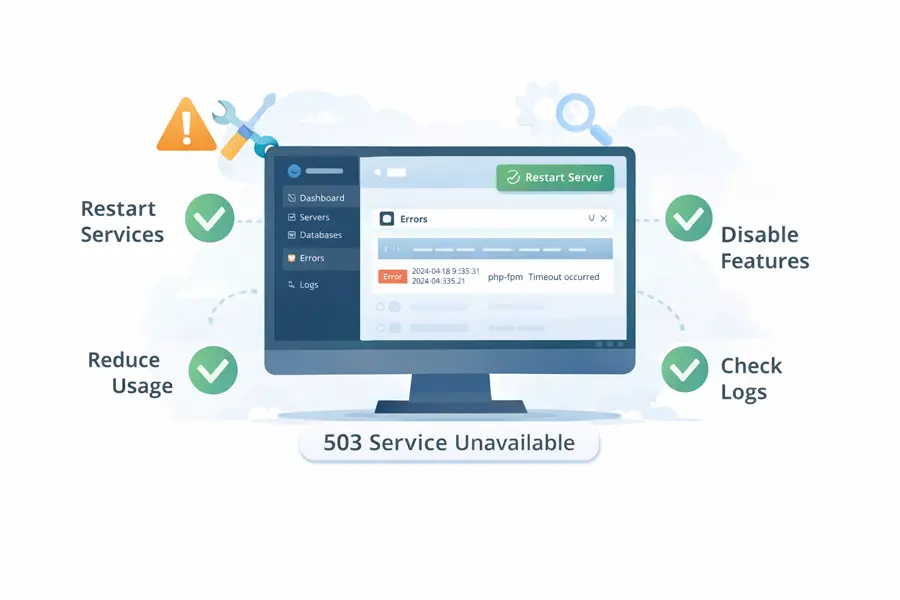
    Check Server Status and Logs

    The first place to look is your server error logs. These logs often reveal whether the issue is caused by overload, timeouts, or crashed services.

    Restart Server Services

    Restarting services like:

    • Web server (Apache / Nginx)
    • PHP-FPM
    • Database services

    can immediately resolve many 503 errors caused by stalled processes.

    Reduce Resource Usage

    If your website is pushing the limits of its hosting environment, consider:

    • Optimizing plugins and scripts
    • Reducing background tasks
    • Implementing caching
    • Offloading assets to a CDN

    Temporarily Disable Heavy Features

    If a new plugin, theme update, or custom script caused the issue, disabling it can quickly restore availability.

    How To Fix A 503 Error

    How Long Should a 503 Error Last?

    Ideally? Only minutes.

    Search engines generally tolerate short-term 503 errors, especially if the server sends proper headers indicating temporary downtime. However, if a 503 error lasts hours or days, it becomes a serious problem — both for SEO and user trust.

    A well-managed hosting environment should detect, isolate, and resolve these issues automatically or with minimal intervention.

    What Causes A 503 Error

    How to Prevent 503 Errors in the Future

    Prevention always beats repair. Long-term stability comes down to infrastructure quality and hosting philosophy.

    Reliable prevention strategies include:

    • Hosting environments with generous resource allocations
    • Proper isolation between accounts
    • Proactive monitoring and alerting
    • Scalable infrastructure that can handle traffic spikes
    • Experienced technical support available when things go wrong

    This is where your choice of hosting provider matters more than any plugin or optimization trick.

    How To Prevent A 503 Error

    Why Hosting Quality Matters More Than You Think

    Many 503 errors aren’t caused by the website itself — they’re caused by cheap, overcrowded hosting environments that collapse under normal usage.

    At Orange Website, our infrastructure is built with stability, privacy, and resilience in mind. We don’t overload servers, we don’t cut corners on resources, and we don’t leave customers guessing when something goes wrong.

    Our hosting solutions are designed to:

    • Handle traffic spikes without crashing
    • Maintain uptime even during high load
    • Provide fast, knowledgeable technical support
    • Protect your website from unnecessary downtime

    When your website stays online, your business stays open.

    Stop 503 Errors Before They Start

    If you’re tired of unexplained downtime, recurring server errors, or hosting environments that fail under pressure, it’s time to upgrade.

    Orange Website offers reliable, privacy-focused hosting built for websites that need to stay online — not apologize for being unavailable.

    👉 Join Orange Website today and host your site on infrastructure designed for stability, performance, and peace of mind.

    Final Thoughts

    A 503 error is a warning sign — not just that something went wrong, but that your infrastructure may not be prepared for real-world demands.

    Understanding what a 503 error is helps.
    Fixing it quickly is essential.
    But preventing it entirely is where smart hosting choices make all the difference.

    How to create a simple website with WordPress

    How to create a simple website with WordPress

    How To Create A WordPress Websites

    Table of Contents

    ▼▼▼▼▼

    Choose Your Domain

    How do you build a simple website with WordPress for your business, blog, or personal brand? In this article, we will learn how to create easy steps. One of the best ways to create a website is to do it on WordPress. WordPress is free, open-source, fast, and secure. It's also SEO-ready for all kinds of customization.

    You can also run WordPress on any website. Given these benefits, you won't be surprised that over 33% of sites worldwide use WordPress. However, before creating your WordPress website, you must know that WordPress.com differs from WordPress.org. This article is about WordPress.org because it is cheaper and more versatile.

    Ready to create a WordPress website? Let's get started.

    Step 1 - Choose your Domain Name

    Before you create a website, you need to pick a name and get your hosting. You can select any name you like, but you must ensure that no one else has used it.

    Besides, it would be best to be careful about crafting your website name so it doesn't become problematic. For instance, if you create a business website, your name should be brandable. Making it short and easy to memorize is also essential without mixing things up.

    In some niches, adding your niche keywords to your name can also be a great idea as they help your rankings. If you don't know how to get a name, use this tool – Domain Wheel, to find name suggestions within your blog or business niche. This tool will also help speed up your registration process.

    Step 2 - Register your domain name

    Now, you need to register that domain. This means buying the domain name. However, it's also possible to get your hosting and domain from one provider. Bear in mind that a domain name is entirely different from hosting. Many domain names cost on average $12 to $25.

    Step 3 - Get a hosting plan

    Hosting is about the servers that would make your website available online. We offer hosting and domain names together. If you are interested in our WordPress hosting, check out our packages here.

    Step 4 - WordPress Installation

    Now that you have your hosting and domain name, you are all set to get your WordPress website up and running. Fortunately, many website hosting providers provide one-click access to WordPress. Therefore, pick the domain and hosting, complete the hosting sign-up process, and confirm through the email sent to your account.

    Next, you must log into your new hosting account to set up the website. On the Dashboard that opens up after you purchase your hosting and domain name, you will see the link to "install WordPress."

    Step 5 – Connect your Domain to your hosting

    If you did not purchase the domain and hosting together then you need to go through this step to link the domain name to your hosting. Here's what you should do:

    • Log in to your hosting cPanel
    • Select AddonDomains under the Domains section
    • Now enter the domain you purchased under the New Domain Name
    • Next, mark the subdomain field and the Document Root, which automatically fills up.
    • Mark "Create an FTP account associated with the Addon Doman" if you want that added. Finally, select "Add Domain."
    • Once done, go back to your Webhosting Dashboard dedicated to the name you just added.
    • Select the Addon Domain from the drop-down menu in your DNS Management section
    • Select DNS templates, and the hosting template will be selected by default. Finally, confirm to add DNS records.

    Step 6 - Get Started on your WordPress website

    Now, use the domain name to access your WordPress user panel. It may mostly look like this: www.YOURDOMAIN.com/wp-admin. This redirects to your WordPress page, where you must enter your username and password from the profile you created on your hosting page. Once you log in, you can access the admin panel. Now, here are some basics you need to add:

    1.   Set permalinks

    These are the URLs attached to each page or post on your website. For instance, the contact page can be YOURDOMAIN.com/contactus. Go to Settings on your Dashboard and select Permalinks. Next, choose the simplest, which is by post. Bear in mind; you can always customize further according to individual posts.

    2.   Make your website public

    You need Google to find your website. Therefore, go to Settings and select Reading. Now make sure the box next to "Discourage search…." Is left unchecked.

    3.   Craft tagline and website title

    Go to General and select "Site title" and "Tagline fields" to how you want them to appear on your WordPress theme. Note that the tagline is optional, you can leave blank if you don't want it to appear on your site.

    4.   Comments

    You can choose to allow or disable comments on your website by going to Settings and selecting Discussions. Next, mark to fulfill your wishes from the "Default article settings" dialog box.

    5.   Trackbacks and pingbacks

    Trackbacks and pingbacks are meant to alert you when blogs link to you. Because there's a good chance hundreds of blogs will link to you in the future, you need to disable these alerts.

    Go to settings and select Discussion, now deactivate them.

    6.   Set your time zone

    You can also choose to set your time zone to help to make your posts and new pages chronological. To do this, go to Settings and select General. Now you can choose to set a time zone for where you are located or the time zone for your target audience.

    Step 7 – Select a WordPress Theme

    Now you need to select a theme for your website. There are thousands of free and premium themes available. You can choose from the official directory of WordPress.org or check out premium themes under theme providers like ThemeForest. After selecting any theme, you want, add to your WordPress by:

    • Go to your WordPress dashboard
    • Select Appearance and then Themes
    • You can upload themes or select directly from the window that pops up
    • Next, customize to your heart's content, and that's how you create a simple WordPress website.

    Concluding thoughts

    Now that you have created your WordPress website, here are a few pointers to start quickly. Ensure you make the key pages (About Us, Contact Us, terms of Service, homepage, privacy policy) before everything else. You should add plugins such as Google Analytics, WPForms, Yoast SEO, and Wordfense Security to your basic setup. This list should increase as your needs expand. Overall, try to keep your WordPress design clean and easy to navigate. WordPress is one of the best ways to create a terrific website. There's no reason why you won't enjoy using this simple website you've made.